App tour
We will walk through the Henad UI and give you an overview of its features and how to use them. Before we start, make sure you have installed Henad and can run it.
Overview
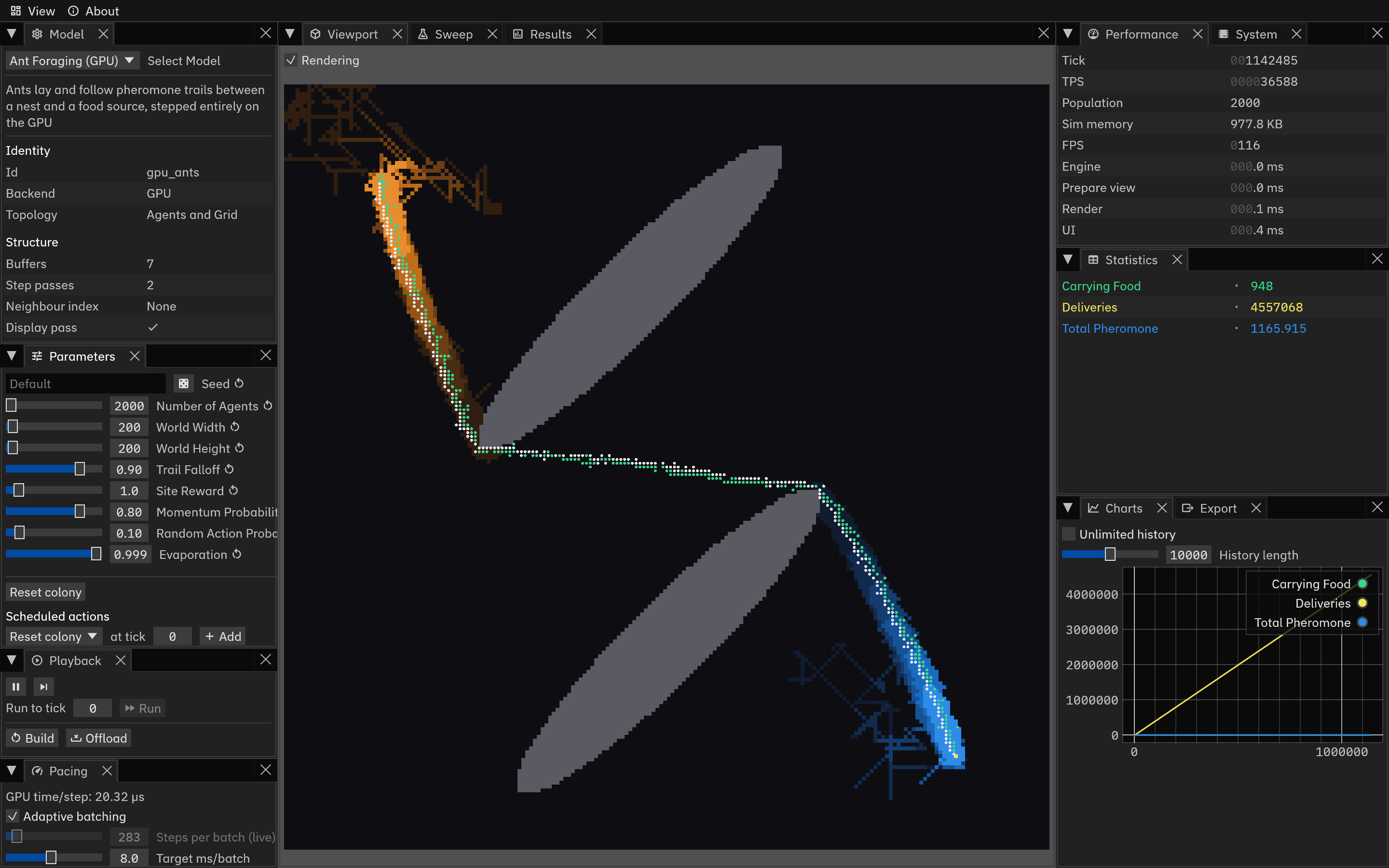
Henad uses a docking UI powered by egui_dock. You can resize each panel, collapse or expand them, move them around, and even drag a tab into its own window.
In the menu bar, View lists all 12 tabs and highlights the open ones, and is the only way to reopen a tab you closed. Click Reset layout at the bottom to put everything back to the default layout, in case the workspace gets too messy.
About links to the source code and this documentation. Select About Henad to open a window with the app's version, commit, source hash, build type and licence, and the version of the crate that provides the models with its commit or the hash of its sources. Press Copy to copy every row, ready to paste into a bug report. An app built on Henad shows its own name there, and adds a Built on row with the Henad version underneath it.
| Tab | Content |
|---|---|
| Viewport | Simulation visualization |
| Playback | Play, step, run to tick, build, offload |
| Pacing | Speed control |
| Model | Model selection and metadata |
| Parameters | Model parameters, seed and actions |
| Sweep | Parameter sweeps, searches and progress |
| Results | Plots and runs of a sweep or search |
| Statistics | Latest value of each stat |
| Charts | Statistics history and plots |
| Export | Writing results to a file |
| Performance | Performance metrics |
| System | Backend information |
Model tab
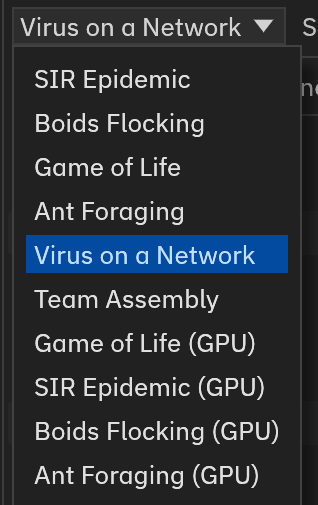
Use the dropdown to pick a model. Picking a model also loads its default parameters, discarding parameters set in the Parameters tab.
The GPU model entries only appear when a suitable device is detected.
See the models reference for more details on each model.
Metadata
Below the description, the panel displays auto-computed metadata about the model, which is useful for understanding its structure and resource requirements.
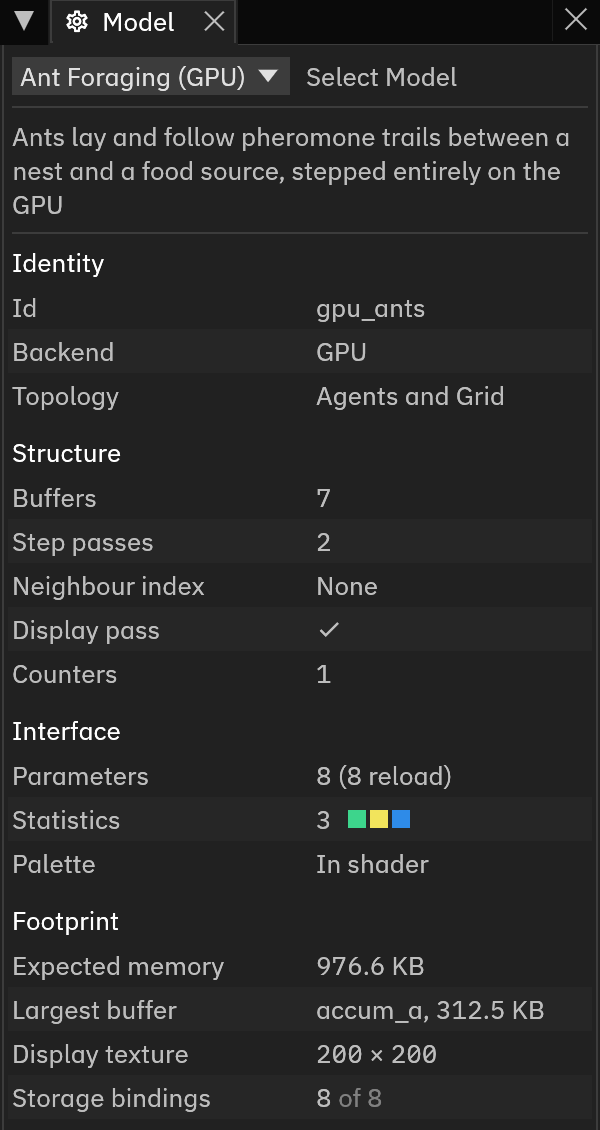
- Identity
- The model id the CLI takes, its backend (CPU or GPU), and which display layers it publishes. A network model's topology reads Network.
- Structure
- Underlying data structure of the model, which is different for each authoring trait. For example, a grid model reports its neighbourhood. A CPU agent model reports its lanes, chunk size, neighbour index and field layer. A GPU model reports its buffers and passes. A network model reports its lanes and its chunk size. Hover over the counts to see the names of each buffer or step pass.
- Interface
- How many parameters and statistics the model declares, and the palette it uses. Palette information cannot be obtained directly for a GPU model. A network model adds an Edge palette row with the colours its edges can take.
- Footprint (GPU only)
- Expected model resource requirements at the parameter values currently in the Parameters tab.
Parameters tab
This tab shows the parameters of the selected model, and you can change them using the sliders or text boxes.
A parameter that is either on or off shows as a checkbox, and one with a fixed set of options shows as a dropdown.
Some parameters, such as chances, are shown as percentages, and you can type a value with or without the % sign.
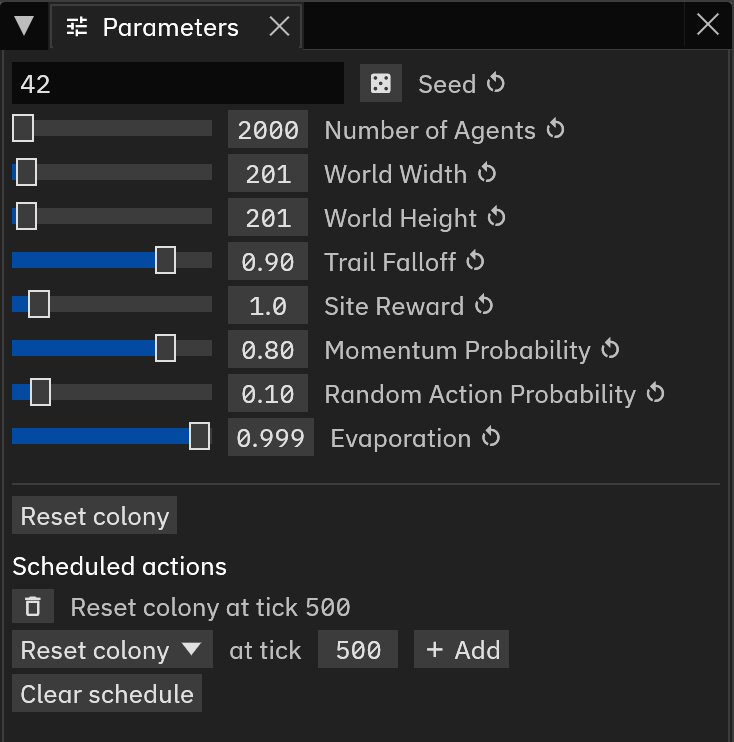
A parameter can either be live or reload.
- Live
- Takes effect on the next tick. This means that you can change it while the simulation is running, and see the effect immediately.
- Reload
- Only read when the model is (re)built. They always carry a marker. Editing a reload parameter while a simulation is running will turn the label amber, with a Reload needed banner. Nothing is lost, and nothing is applied until you press Build.
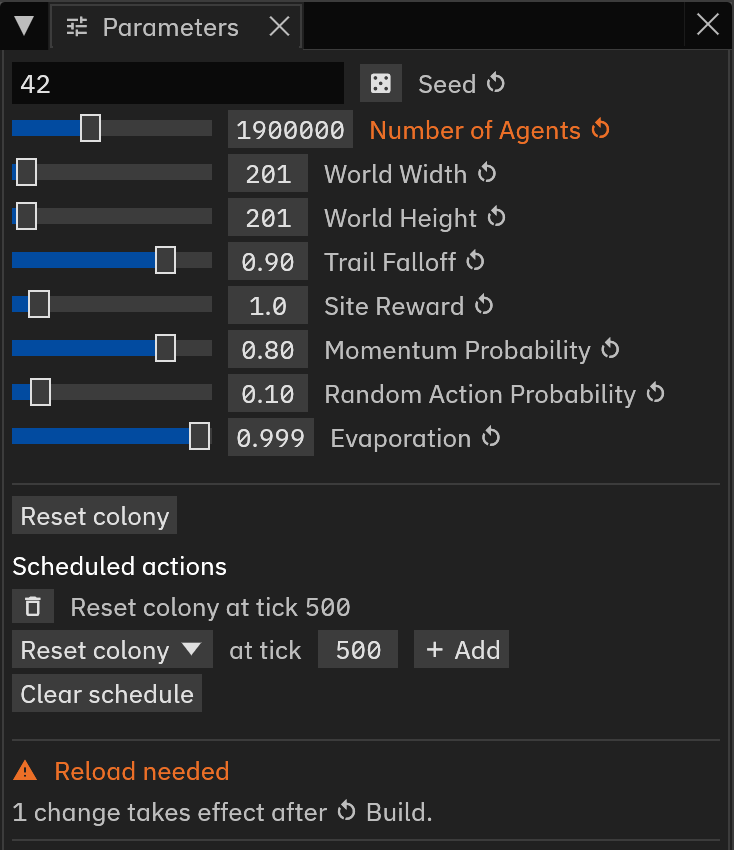
There are 4 possible banners:
| Banner | Meaning |
|---|---|
| No simulation loaded | Nothing built yet. Parameters apply on the first build. |
| Selected model not loaded | A model different from the running one is selected. |
| Reload needed | Reload parameters, the seed or the scheduled actions have been edited but not applied. |
| Too large for this device | The selected parameters require too many resources. Try lowering them. |
Seed
Most models draw random numbers, and the Seed field at the top of the tab picks the seed they start from. Left empty, the field reads Default, and the model builds with its own seed. Type an integer from 0 to 18446744073709551615 to build with that seed instead, or press to fill in a random seed. Any other text shows an error under the field, and Build stays disabled until you fix it.
The seed is only read when the model is built, like a reload parameter, and carries the same marker. Changing it turns the label amber and counts towards the Reload needed banner. The dice button only fills in the field, and the new seed applies on the next build.
A seed makes a run repeatable. Two builds with the same seed, parameters and scheduled actions step through the same run, tick for tick. Playback speed and thread count make no difference. A rebuild reads the values in the Parameters tab, so a live parameter edit applies from tick 0 instead of the tick it was made at. A press of an action button is not repeated.
The seed means the same thing to the CLI.
A number in the field is the number henad-cli --seed takes, and Default matches henad-cli without --seed.
For example, record 100 ticks of SIR with seed 42:
Then select SIR, type 42 into the Seed field, press Build, and run to tick 100.
The Statistics tab shows the same values as the row for tick 100 in sir.csv.
GPU Boids is the one model whose runs do not repeat. Its neighbour index leaves the order of the boids within a cell open, and two builds with one seed drift apart after tick 0.
Actions
Some models declare actions, one-off changes to the state, such as Randomise and Clear in Game of Life or Rewire a link in Virus on a Network. Each action gets a button below the parameters. Pressing it runs the action once, between ticks, and it also works while the simulation is paused. The buttons are disabled until the selected model is built.
Scheduled actions
A button runs its action in the current run only. To run an action at a set tick on every build, add it to Scheduled actions, below the buttons. Pick the action in the dropdown, set the tick in the field after at tick, and press Add. The list is kept in tick order, and each entry reads like Seed outbreak at tick 10. removes one entry, and Clear schedule removes them all.
Each action runs once, after the step that reaches its tick, and one at tick 0 runs as soon as the model is built.
The Statistics tab already shows the action's effect at that tick.
With the same seed, a scheduled Seed outbreak at tick 10 gives the same run as henad-cli --act seed_outbreak@10.
The row --export-stats writes for tick 10 includes the action too.
The list is read when the model is built, as the seed is. Changing it turns the heading amber and counts towards the Reload needed banner. Picking another model in the Model tab clears the list. Picking the running model again brings back the parameters, seed and scheduled actions it runs with.
Playback tab
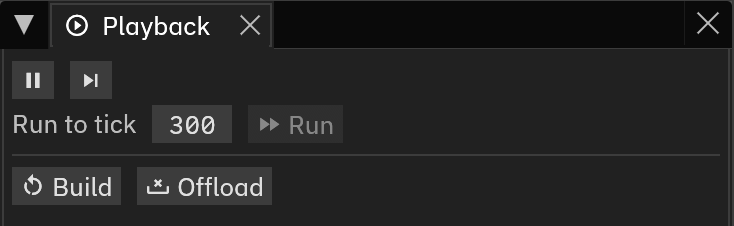
- /
- Start or pause the simulation.
- Advance one tick while paused.
- Run to tick and Run
- Step as fast as possible to a tick, then pause. See below.
- Build
- Construct the selected model from the current parameters, replacing the running simulation if it exists.
- Offload
- Remove the simulation from memory and free its resources. This also terminates the running simulation if it exists.
Run to tick
Type a tick into the Run to tick field and press Run. The simulation steps as fast as it can until it reaches that tick, then pauses. Target TPS in the Pacing tab does not slow it down. While it runs, the row turns into a progress bar reading Running to tick and the target. The viewport and statistics refresh about ten times a second. After Run to tick, the Charts tab holds only the snapshots the app received on the way, so a fast run can draw as a straight line.
Cancel stops the run at the current tick. Pressing or also ends it, and carries on at the paced speed.
A tick behind the current one rebuilds the model first and runs to the tick from 0. The rebuild reads the Parameters tab as Build does, so any change waiting for a build applies too.
When the run stops, the Statistics tab shows the stats of that exact tick, on a GPU model too.
Run is disabled in four cases:
- No model is built yet.
- The simulation is playing, until you pause it.
- The Model tab has a model selected other than the one loaded, until you press Build.
- The tick is behind the current one and Build is disabled, for example while the Seed field shows an error.
Pacing tab
The Pacing tab controls how fast the simulation runs. The controls for CPU and GPU models are different due to the different ways they run.
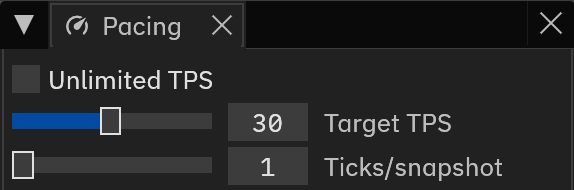
Unlimited TPS removes the speed cap and lets the sim thread run as fast as it can. This is generally favorable as it delivers results quickly, but it can be difficult to see the visualization clearly at this speed.
Target TPS sets the maximum ticks per second.
Ticks/snapshot sets how many ticks pass between published snapshots. This controls how frequently the viewport and the statistics are updated.
When a network model is loaded, three layout controls follow.
Layout arranges the nodes with a spring layout while the simulation runs, and is on by default. Node positions are only for drawing, and the layout never changes the statistics.
Layout while paused keeps the layout running while the simulation is paused. Without it, pausing freezes the picture.
Layout budget sets the time the layout spends on each snapshot. The layout always runs at least one iteration, and on a large network one iteration can take longer than the budget. The layout shares time with the simulation, so a larger budget moves the layout further per snapshot but leaves less time for ticks. The Prepare view row in the Performance tab includes the time the layout took.
Layout while paused and Layout budget can only be changed while Layout is on.
The GPU is also needed to render the UI, so more complex pacing controls are required.
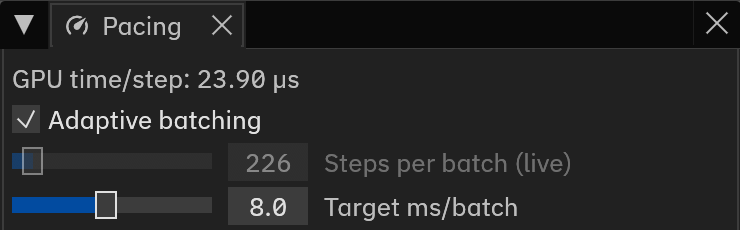
GPU time/step is the time the GPU spent on the last tick.
Adaptive batching automatically calculates how many steps the GPU should run in each batch, aiming to keep each batch under Target ms/batch.
Target ms/batch sets the maximum time the GPU should spend on each batch. This affects the UI frame rate.
Steps per batch sets how many steps the GPU runs each batch. This is analogous to Ticks/snapshot for CPU models.
Viewport tab

Rendering turns drawing off without stopping the simulation.
Agents sets how an agent model is drawn, either as individual sprites or as a density heatmap.
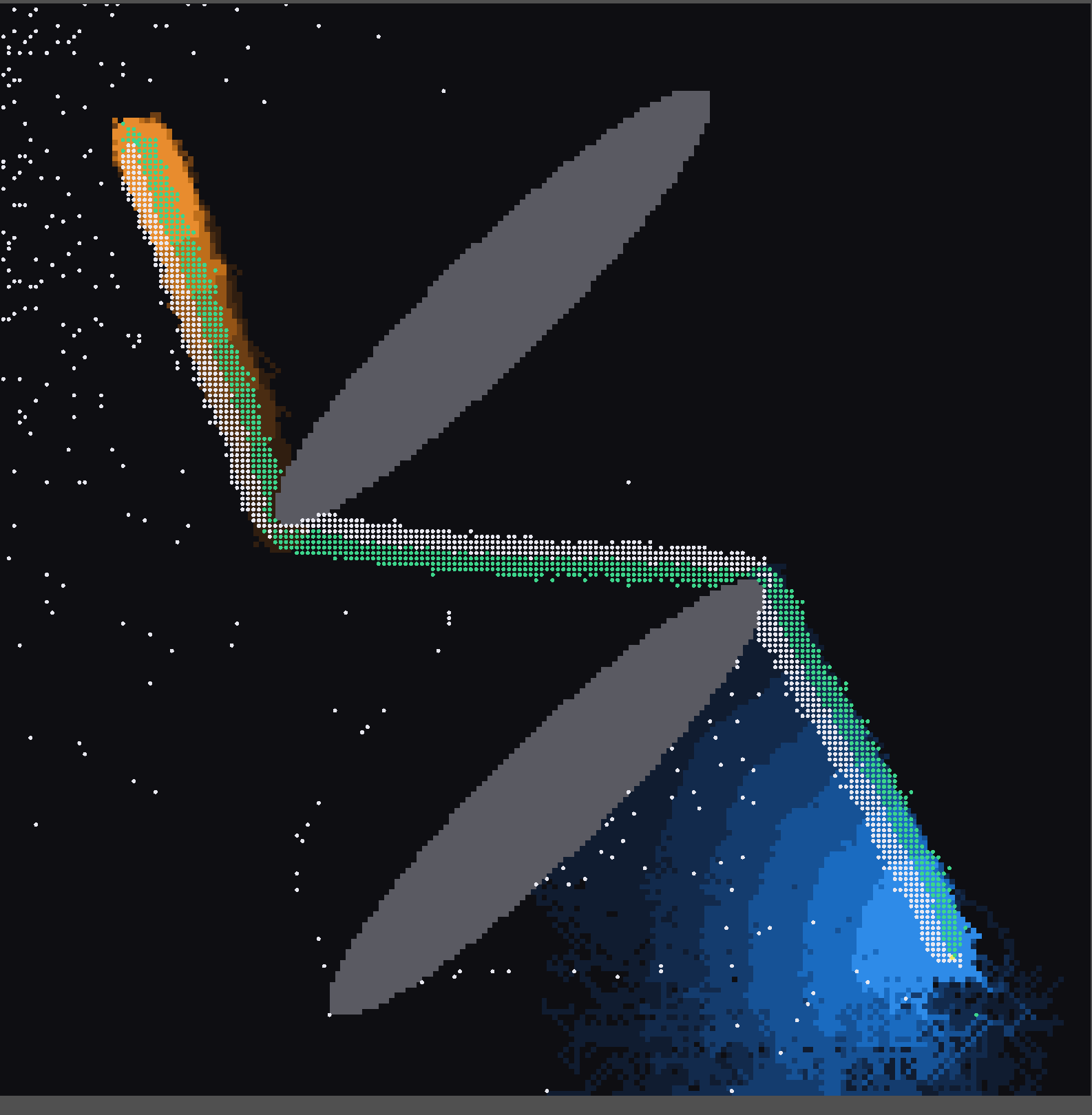
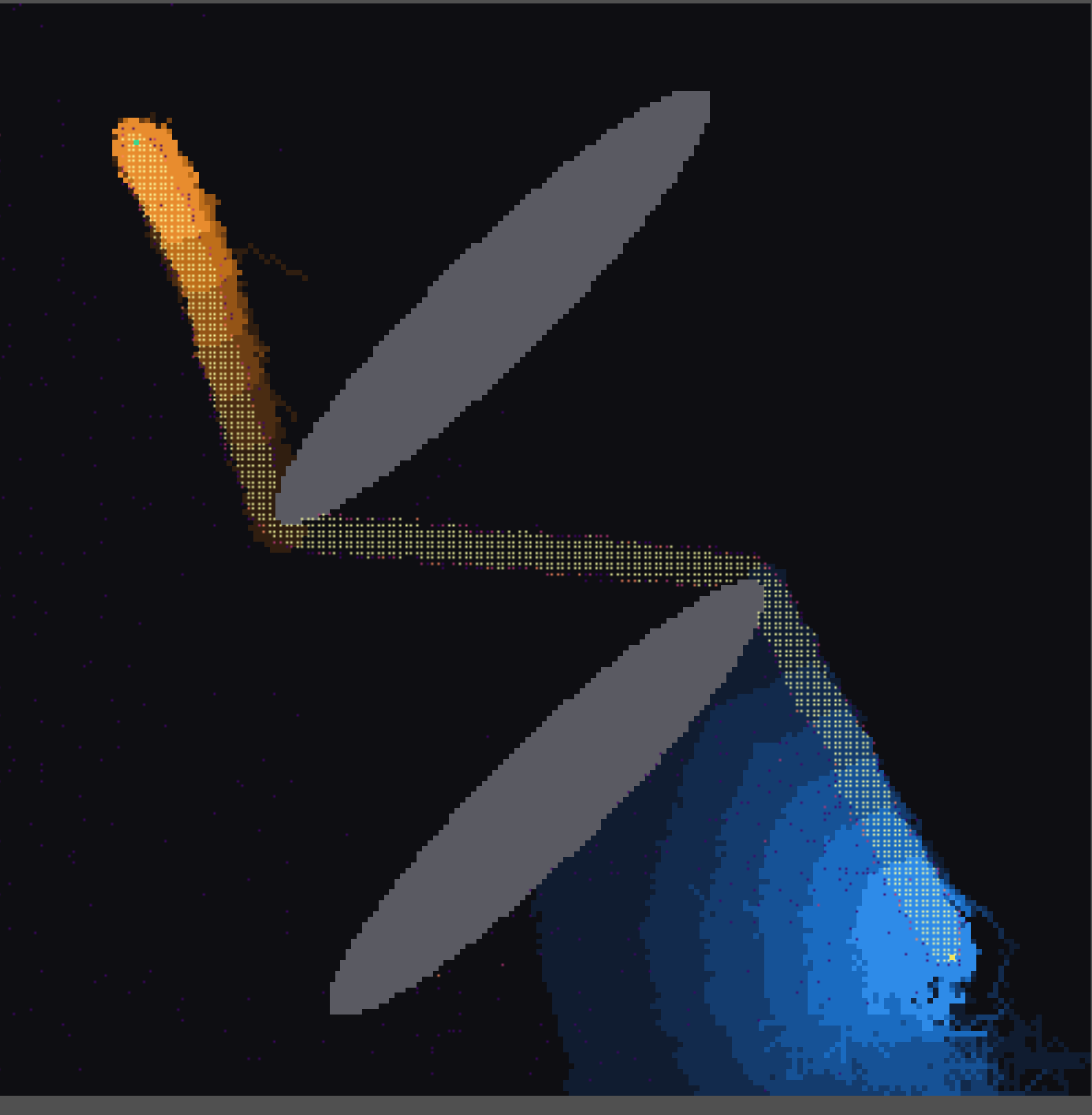
A model with both a field and a population draws the field first and the agents over the top.
In Sprites mode, on a GPU that can draw edges, a network model adds two more checkboxes. Edges draws the edges between the nodes, under the nodes themselves. Arrows appears once Edges is ticked, and puts an arrowhead at the target end of each edge. It can only be ticked when the model's edges are directed. Without arrowheads, a directed edge fades towards its source.
A node that the model has retired, such as a Team Assembly member left too long without a team, is hidden, and its edges are removed with it.
Statistics tab
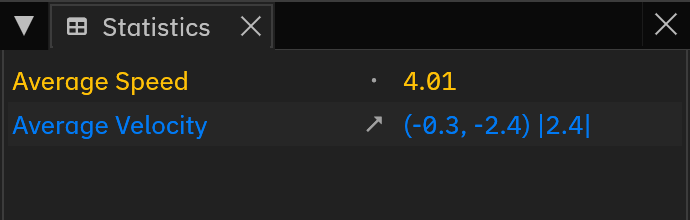
Models can register statistics to be published every tick. The latest values are shown in the Statistics tab, and the historical data are plotted in the Charts tab.
There are three types of statistics available:
| Icon | Kind | Shown as |
|---|---|---|
| Scalar | A number, with up to three decimals | |
| Vector2D | (x, y) and its magnitude |
|
| Histogram | n= the total count across bins |
Charts tab
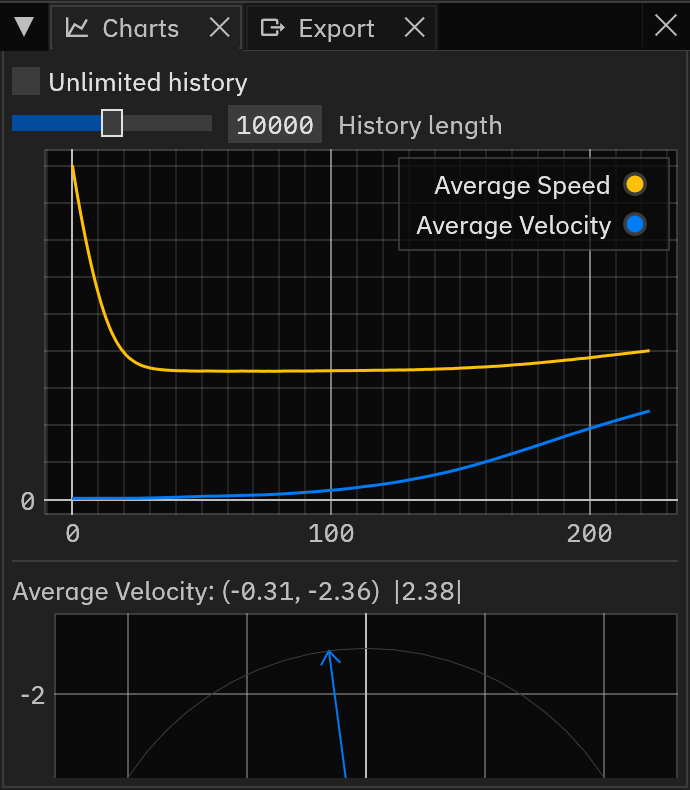
Every stat contributes a line to one time series, plotted against tick. Each non-scalar stat is also plotted for the latest snapshot: an arrow from the origin for a vector, with a circle at its current magnitude, and a bar chart for a histogram.
The charts are powered by egui_plot. Drag to pan, scroll to zoom, and click a legend entry to show/hide that series.
History length sets how many snapshots are kept. Shrinking it deletes the oldest samples.
Tick Unlimited history to keep every snapshot instead, which can be helpful for exporting. Be aware that memory usage will increase as a result. Check the Performance tab frequently to ensure Henad is not accidentally using too much memory.
Export tab
The Export tab writes relevant results to files.
Statistics
Save stats writes the recorded history as CSV, one row per snapshot and one column per stat series.
A vector stat becomes three columns, .x, .y and .magnitude.
A histogram becomes one column per bucket plus .total.
If Unlimited history is not enabled, a warning will be displayed as the oldest snapshots might have been lost over time. Turn on Unlimited history in the Charts tab to keep every snapshot.
Recording
Record captures every snapshot from the moment it starts, independent of the history length setting in the Charts tab.
Stop will stop recording, and Save recording will write the captured snapshots to CSV.
Current state
Save state writes the current cells and agent positions as text, the same format as henad-cli --export.
For a network model it also writes the edges, giving each endpoint as that node's row in the file, and leaves retired nodes out.
Due to technical limitations, the current state of a GPU model cannot be exported.
Viewport
Save image writes the layers as a PNG at a specific resolution automatically determined by the engine. A network's edges follow the Edges and Arrows checkboxes in the Viewport tab.
Run details
Save details writes the run's metadata as a JSON file, with the model, its resolved parameters, the tick reached, the host, the adapter and other fields.
seed is the seed the model was built with, or null for Default, and scheduled_actions lists the id and tick of each scheduled action.
params holds the values the running model uses, those it was built with and any live edit since, and params_match_running_model is true whenever a model is built.
An edit in the Parameters tab that waits for a build, or a value of another selected model, is left out.
When nothing changed during the run, henad-cli repeats the run from these fields: each parameter as a --set, the seed as --seed (left out when null), each scheduled action as --act ID@TICK, and tick as --steps.
The file records the value a live edit set but not the tick it was set at, and records no press of an action button.
Sweep tab
The Sweep tab runs a parameter sweep: many runs of the model selected in the Model tab, over several parameter values and seeds.
It sits behind the Viewport tab, together with Results.
A sweep started here writes the same four files as henad-cli --out.
The parameter sweeps guide covers each setting in more depth.
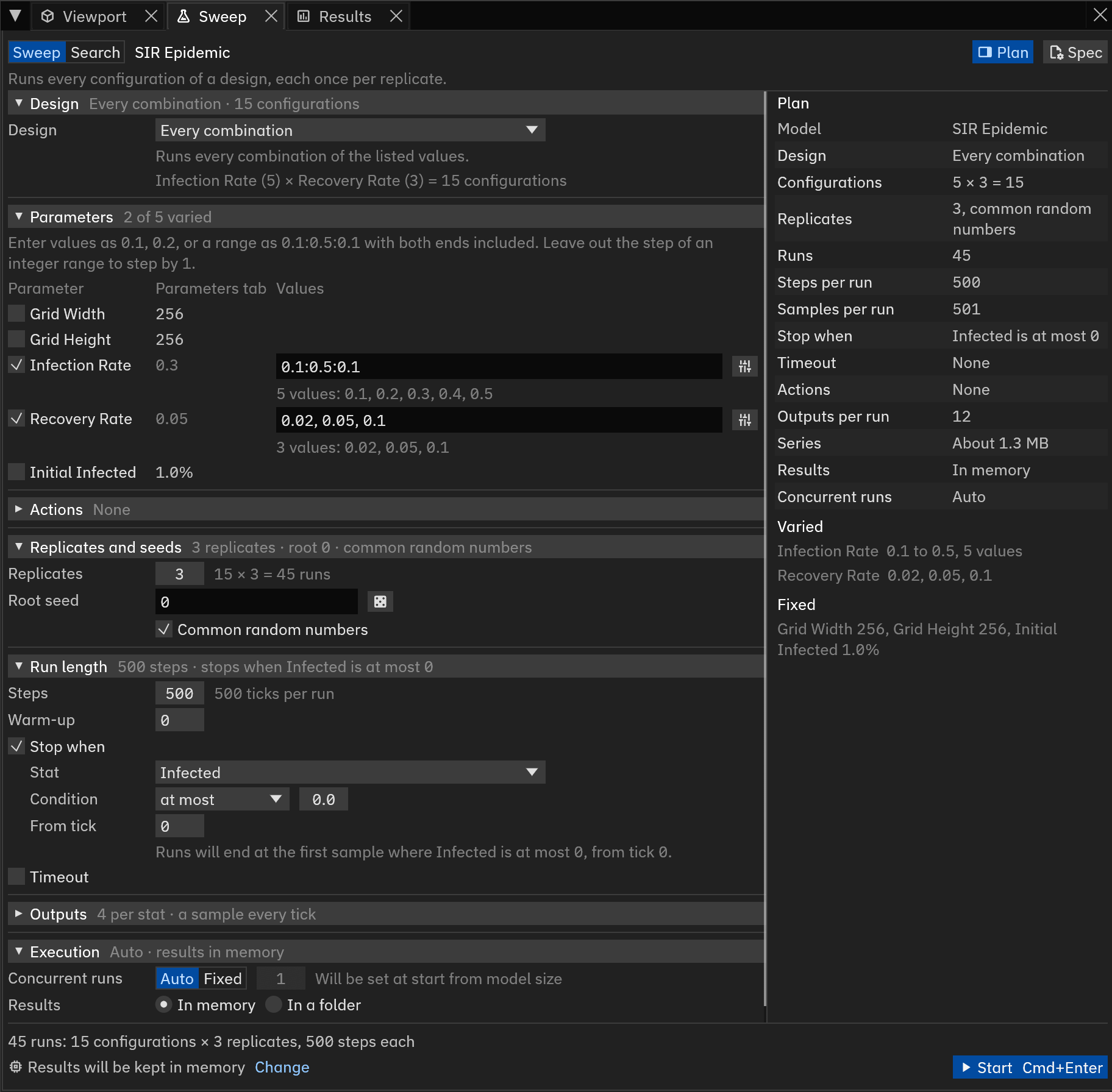
The top of the tab holds Sweep and Search, the model's name, Plan and the Spec menu. Sweep runs every configuration of a design, and Search runs a search that picks its configurations as it goes. The line under them describes the mode. After a save or a load it reports the outcome instead, as in Saved henad-sir-sweep.toml, until you change a setting, press or switch the mode. The model's name brings the Model tab to the front, where another model can be picked. The bottom of the tab holds the run count and Start, and stays in view while the settings scroll.
The settings between them sit in sections: Design, Parameters, Actions, Replicates and seeds, Run length, Outputs and Execution. Actions appears only for a model that declares actions. A section's header sums up its settings after the title, as in 1000 steps · stops when Infected is at most 0 for Run length, and a click on the header opens or closes the section. Outputs and Execution start closed. A section with a problem shows the number of problems beside its title, and a closed section shows the count too. On a wide tab, the Plan panel on the right lists the totals of the sweep. On a narrow tab, each label sits above its control, and the plan becomes the last section.
The sections below describe a sweep, and Search mode covers the changes for a search.
Design
Design sets how the values of the varied parameters combine into configurations. The lines under it say what the design runs and how it counts the configurations, as in Infection Rate (5) × Recovery Rate (3) = 15 configurations.
- Every combination
- Runs every combination of the values, as repeated
--varydoes. - Zip
- Pairs the first values of every parameter, then the second, and so on, as
--zipdoes. Each varied parameter needs the same number of values, and the line under Design shows each list's length when the lengths differ. - One at a time
- Varies one parameter at a time, and holds the others at their values in the Parameters tab. Three parameters at five values each give 15 configurations, against 125 for Every combination. A varied action tick takes its turn too, with every parameter at its Parameters tab value. Each varied parameter or action tick becomes its own block in the spec.
- Latin hypercube, Uniform random
- Draw Samples configurations from the ranges, as
--sample lhs:Nand--sample random:Ndo. Design seed, under Replicates and seeds, fixes the draws, and fills in a random seed. Left empty, the design seed is derived from the root seed. - Design table
- Runs the rows of a CSV file as configurations, as
--designdoes. Press Load design CSV to pick the file, Replace to pick another, and Remove to drop it. The row shows the file name and the number of rows, as in sir-design.csv · 12 rows. The line under the file lists the parameters that its columns set, and every other parameter keeps its Parameters tab value.
Parameters to vary
Parameters lists every parameter of the model, under a line that shows how to write the values for the selected design.
Tick a parameter to vary it, and type its values into the field beside it.
The field takes values the way henad-cli --vary does:
| Text | Values |
|---|---|
0.1, 0.2, 0.5 |
Each listed value |
0.1:0.5:0.1 |
0.1 to 0.5 in steps of 0.1, both ends included |
0.1:0.5 |
Every value between 0.1 and 0.5, for a sampled design to draw from |
all |
Every option of a checkbox or a dropdown |
Outside a sampled design, an integer range or a range of ticks can leave out its step, as in 1:5, and then steps by 1.
The line under the field lists the values, as in 5 values: 0.1, 0.2, 0.3, 0.4, 0.5, and shows the first three and the last of a longer list.
A newly ticked field starts empty, and its line reads Enter values with an example, as in Enter values, such as 0:1:0.2.
beside the field opens an editor for the same text.
In the editor, Values, Range and Range to draw from pick a list, a range from Minimum to Maximum a Step apart, or a whole range for the design to draw from.
Only Latin hypercube and Uniform random enable Range to draw from.
Whole range, Both ends, Around current and Current value fill in the whole range, its two ends, half, one and one and a half times the parameter's value in the Parameters tab, or that value alone.
The editor writes into the field as you edit, and writes a list without spaces, as in 1,16384.
A checkbox or dropdown parameter takes a menu of its options instead of the field, and writes all or the options ticked.
The menu's button reads All options, or lists the ticked options.
On a wide tab, a Parameters tab column shows each parameter's value in the Parameters tab. An unticked parameter keeps that value, and on a narrower tab its row shows it, as in at 0.3. With a design table, the table's columns set their parameters, and the checkboxes give way to the names. A parameter the table sets carries and reads From design table.
Actions, replicates and run length
Actions fires one of the model's actions in every run. Press Add action, pick the action in the Action dropdown and set its Tick. Tick Vary tick to try the action at several ticks, typed into the text field that replaces the tick value, as a parameter's values are. removes the action. With a Design table that has a column for the action, the table sets its tick, and the Plan reads as in Seed outbreak, tick from design table. An action fires after the step that reaches its tick, as a scheduled action does. An action due past the last tick of a run shows a warning, since it never fires there.
Replicates runs each configuration that many times, each time with its own seed, and the line beside it counts the runs, as in 15 × 3 = 45 runs.
Every seed is derived from Root seed, and fills in a random root.
With Common random numbers ticked, replicate r starts from the same seed in every configuration, and less of the difference between two configurations is noise.
Untick it to give every run its own seed, as --independent-seeds does.
The sweeps guide explains the seed scheme.
Steps is the number of ticks each run measures, after Warm-up ticks that the outputs skip. The line beside Steps counts both, as in 1100 ticks per run. At 0 steps, a run measures only the last tick of its warm-up.
Tick Stop when to end a run at the first sample where a stat passes a threshold, as --stop does.
Pick the Stat, the comparison and the threshold under Condition, and set From tick to the first tick at which the condition can end a run.
The comparison dropdown shows each comparison in words, then its symbol: below <, at most <=, equal to ==, not equal to !=, at least >= and above >.
The line under them spells the condition out, as in Runs will end at the first sample where Infected is at most 0, from tick 0.
Tick Timeout to end a run once it has stepped for Seconds per run, 600 to begin with.
The field takes 1 s or more, and a shorter timeout from a loaded spec file stays as written.
With several GPU runs at once, a run's time is its share of the time the sweep spends on them, as the sweeps guide describes under concurrency.
The ticks a run reaches in that time depend on the machine, and a sweep with a timed-out run is not reproducible.
Outputs and execution
Sample every sets how often a run reads its stats, and Series every how often a sample goes into the series. Series every has to be a multiple of Sample every, and 0 keeps no series at all. Reading stats takes time, most of all on the GPU, and a larger Sample every makes a sweep faster. The lines beside them count the samples of a run and the size of the series.
Final value, minimum, maximum and mean of every stat records those four values of every stat for each run.
Add output records one more value of a stat, picked in the row's two dropdowns.
The choices are Final value, Minimum, Maximum, Mean, Tick of maximum, Tick of minimum, First tick crossing a threshold, and Mean over window between two ticks.
The line under the row shows its column name in runs.csv, as in Written as Susceptible:argmax.
The sweeps guide describes each choice as a reducer.
Concurrent runs sets how many runs step at once.
Auto picks a number from the size of the model when the sweep starts, as henad-cli does, and Fixed uses the number beside it.
Each run in progress holds its own memory, and a large model runs fastest alone.
A spec file loaded with memory or gpu_memory in its [execution] table adds a Memory budget row, as in 4.0 GB, GPU 2.0 GB, with the note From loaded spec file.
The sweep then runs under those budgets, as --memory and --gpu-memory set them, and beside them returns to the automatic budgets.
Results keeps the results In memory until you save them, or writes them In a folder as the runs finish, as --out does.
Picking In a folder opens a dialog to pick the folder, and the Folder field then holds its path.
Canceling the dialog leaves the results in memory, and Select picks another folder later.
The folder must not hold results already, and Start stays disabled while it does.
When those results are incomplete, Open in Results opens them in the Results tab, where Resume sweep finishes them.
Plan
On a wide tab, the Plan panel beside the settings sums up the sweep as it stands. Its rows show the totals and the settings that shape the runs, such as Configurations reading 5 × 3 = 15 and Series reading About 1.6 MB. A total reads Unknown while any problem remains. Runs and Series turn orange from half the app's limits. Under the rows, Varied lists the values of each varied parameter or action tick, and Fixed shows the value of every other parameter. A spec file loaded with memory budgets adds a Memory budget or GPU memory budget row for each budget it sets. Problems and Warnings follow when the sweep has problems or warnings. A click on a row's label opens the section that sets it, and a click on a problem opens its row.
Plan at the top of the tab shows or hides the panel, and dragging its left edge resizes it. On a narrow tab, the panel and its button give way to a Plan section at the end of the settings, closed until you open it.
Starting a sweep
The bottom of the tab counts the runs, as in 45 runs: 15 configurations × 3 replicates, 1100 steps each. While the sweep has a problem, the line shows the first problem instead, as in Sweep not ready. Recovery Rate: '0.x' is not a number, and each problem also shows under its row. Missing input, such as a ticked parameter with no values, is shown in the normal text colour with . Input that the sweep rejects is shown in red with . While you type in a field, its line shows the form the text takes, as in Format: 0.1, 0.2 or min:max:step, and the problem shows once you leave the field or stop typing.
At the end of that line, a count reads 2 problems, or 2 missing while every problem is missing input. A click on the count lists the problems under Sweep not ready, and a click on a problem opens its section and selects the row's text. A count such as 1 warning lists the warnings in the same way, and a warning never stops a sweep from starting. Start stays disabled until every problem is fixed, and its tooltip lists the first three problems. When a sweep cannot start, the reason replaces the count of runs.
The line under it says where the results go, as in Results will be kept in memory, and Change opens the Execution section.
The app runs sweeps of up to 1,048,576 runs, and a larger sweep needs henad-cli.
A sweep that keeps its results in memory holds up to about 4 GB of series, or 1 GB in a browser.
A larger sweep needs its results In a folder or a larger Series every.
From half of either limit, the count of runs turns orange.
Press Start, or Cmd+Enter (Ctrl+Enter outside macOS), to run the sweep. Starting a sweep pauses the live simulation. You can press in the Playback tab again, and the simulation and the sweep then share the processor. When the Results tab holds results in memory that you have not saved, the bottom of the tab reads Last results not saved beside Save results. Starting a sweep then opens a Replace results? dialog first. Save results there saves them and starts nothing, and Start anyway drops them.
While a sweep runs
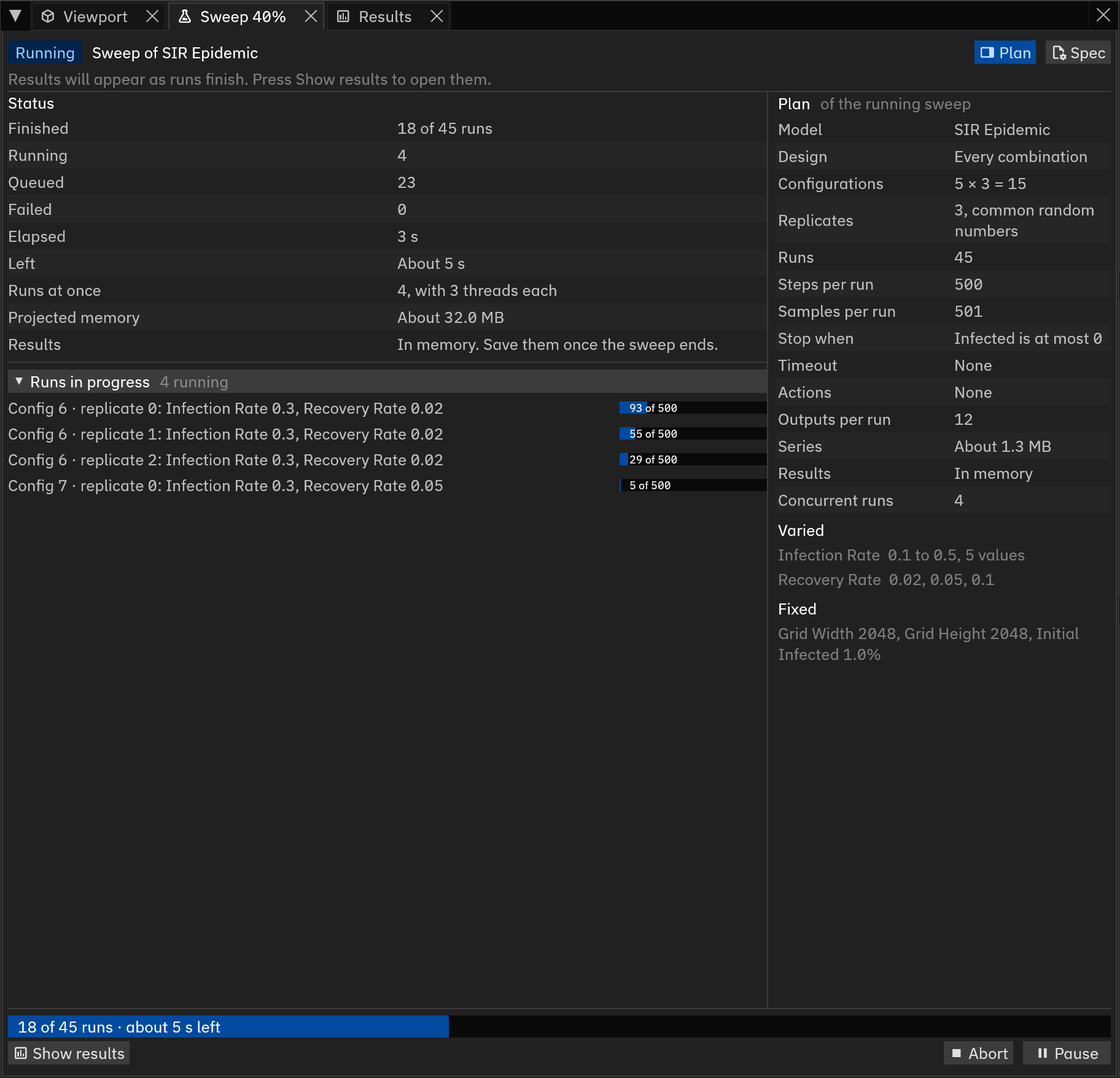
Once the sweep starts, its progress replaces the settings, and Pause replaces Start. The top of the tab shows the sweep's name, as in Sweep of SIR Epidemic, beside its state: Planning, Running or Paused. The tab's title shows the share of the runs finished, as in Sweep 20%, or Sweep paused while the sweep is paused. The progress then stays in view behind another tab.
The bottom of the tab shows a bar of the finished runs, as in 12 of 60 runs · 1 failed · about 16 s left. The estimate assumes the remaining runs take as long as the finished ones did. Above the bar, the Status grid counts the finished, running, queued and failed runs, the time elapsed and left, the runs stepped at once and the memory they are projected to hold. Its last row, Results, says where the results go. Runs in progress lists each run with the values of its configuration and a bar of its ticks, as in Config 3 · replicate 1: Infection Rate 0.2, Recovery Rate 0.05 beside 420 of 1000. It lists eight runs at most, and counts the rest. The Plan panel shows the plan of the running sweep, and a narrow tab shows it in a closed Plan section at the bottom. The Results tab fills in as the runs finish, and Show results brings it to the front.
- Pause
- Holds every run in progress after its current slice of steps. The runs keep their state, and Resume carries them on from where they stopped. While the sweep is paused, the bar turns orange and the estimate is hidden.
- Abort
- Ends the sweep, once you confirm with Abort sweep in the Abort sweep? dialog. Finished runs stay in the results, and runs in progress are dropped. With several runs at once, a run that finishes before an earlier one waits for it to be written, and an abort drops it too. The dialog counts the runs that the abort keeps and the runs of each kind that it drops, and says whether the rest can run later. Keep running, or Keep paused for a paused sweep, closes the dialog and leaves the sweep as it was.
A run that fails, for example when its model panics, is recorded with its status, and the sweep carries on with the next run. Show failed runs beside the Failed count lists the failed runs in the Runs view of the Results tab. A sweep of a GPU model runs on its own GPU device, and a GPU error in the live simulation leaves the sweep alone. A device error that no run can be tied to fails every run in progress at the time. Closing the app aborts a running sweep. An aborted sweep with an output folder keeps the runs it wrote, and Resume sweep in the Results tab finishes it later.
When a sweep ends
The bar then stops, and reads like Sweep finished: 15 runs, 0 failed, in 4 s, or Sweep aborted after 39 of 300 runs, in 12 s. The time leaves out pauses. The state at the top of the tab reads Finished, Aborted, Stopped after the GPU device is lost, or Failed. The tab's title reads Sweep done, Sweep stopped or Sweep failed. A Result grid replaces Status, with the runs written, the failed runs, the time and where the results are. Under an aborted or stopped sweep, a line says whether the runs it did not write can run later, or reads Every run finished before the sweep ended. when it wrote them all. Under the bar, Edit sweep sits on the left, and Save results and Show results on the right.
- Edit sweep
- Returns to the settings of the sweep, ready to change and start again. When another model was picked in the Model tab meanwhile, the sweep's model is selected again, with the values the sweep held fixed. The results stay in the Results tab. After a sweep resumed from the Results tab, the button reads New sweep.
- Save results
- Saves the four files of a sweep held in memory:
runs.csv,series.csv,summary.csvandmanifest.json. The desktop app prompts for a folder, and rejects a folder that already holds a file of the same name. A browser downloads the files one after another, with no dialog, and the status reads Downloads started. Press Save results again if your browser blocked any. In the desktop app the button disappears once the files are saved. In a browser it stays, with the warnings about unsaved results, because the browser can hold back every download after the first. A sweep with an output folder wrote its files as it ran, and has no such button. - Show results
- Brings the Results tab to the front.
Spec files
Save spec in the Spec menu saves the sweep as a TOML spec file, named like henad-sir-sweep.toml.
The file holds every setting that changes a result, each parameter the sweep does not vary at its value in the Parameters tab, Concurrent runs, and the memory budgets of a loaded spec file.
It leaves out where the results go.
henad-cli --spec FILE --out DIR runs the same sweep from the command line.
When a setting cannot go into a spec, such as a value that is not a number or a Mean over window that ends before it starts, the save fails and the top of the tab reads Spec save failed with the reasons.
The first row at fault then opens.
While a sweep runs, and after it ends, Save spec saves the spec that started it.
For a sweep resumed from the Results tab it is disabled, since the folder's manifest.json holds the spec.
Load spec reads a spec file back.
It selects the model that the spec specifies, puts the spec's fixed values into the Parameters tab, and fills in the Sweep tab, with the results In memory.
A loaded value outside the range of its field stays as written, and a value that the sweep rejects, such as 0 replicates, shows as a problem under its row.
The tab edits a spec with one block, or with the blocks that One at a time writes.
A spec with any other blocks, such as crates/henad-explore/specs/sir_sweep.toml, runs from the command line only.
A spec with a [search] table opens in Search mode.
Load spec is disabled from the start of a sweep until Edit sweep returns to the settings.
Search mode
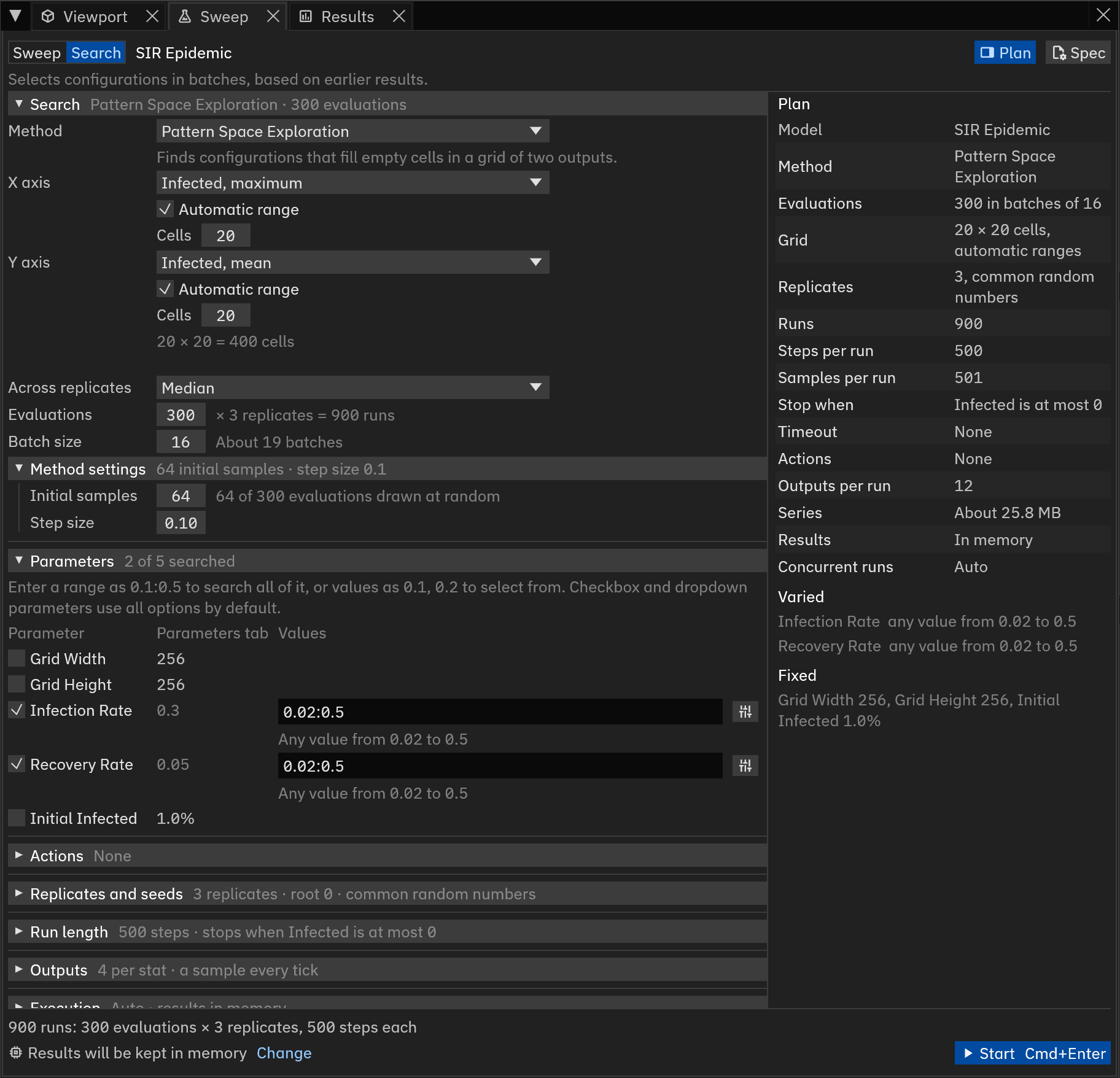
In Search mode, Parameters picks the factors of the search space.
Tick a parameter to search over it.
Its field starts at the parameter's whole range, as in 0:1, or at all for a checkbox or a dropdown.
The field takes the same text as in a sweep, and a range with no step reads as in Any value from 0 to 1.
The search selects from listed values, as in 3 values to select from: 0.1, 0.2, 0.5, and the values editor offers Range to search instead of Range to draw from.
In Actions, tick Search tick to let the search pick an action's tick from the range typed beside it.
A Search section replaces Design. Method picks Random search, Hill climbing, Genetic algorithm or Pattern Space Exploration, and the line under it says what the method does. The tab keeps the settings of every method, and switching methods loses no settings. Objective picks the output that scores each configuration, and Goal picks Maximize or Minimize. Across replicates folds the replicates of a configuration into one value, their Median or their Mean. The Objective list offers the outputs that the Outputs section records, then each stat's other common outputs under Not recorded yet. A vector stat is offered by its parts, as in Average Velocity.x, maximum. Picking one of those outputs adds it to Outputs, where its row reads Used by Objective and cannot be removed while the objective reads it. When a loaded spec's objective is not among the recorded outputs, the problem shows under the field, beside Add to Outputs. Pattern Space Exploration has no objective. Evaluations is the budget, and a configuration run again counts again. The line beside it counts the runs, as in × 3 replicates = 600 runs. Batch size is the number of configurations run at once, before the search picks the next batch, and the line beside it counts the batches. A genetic algorithm adds Population, the configurations of each generation, beside the number of generations the budget allows.
Method settings, under the budget, holds the rest of a method's settings, and stays closed until you open it. Its header sums them up, as in Step size 0.1 · patience 5. Random search has no other settings, and shows no Method settings. Each field of a method sets one key of the method's spec table:
| Field | Key | Method |
|---|---|---|
| Step size | mutation_scale |
Every method but random search |
| Patience | patience |
Hill climbing |
| Re-evaluate best | reevaluate |
Hill climbing |
| Population | population |
Genetic algorithm |
| Elites | elite_count |
Genetic algorithm |
| Tournament size | tournament_size |
Genetic algorithm |
| Crossover rate | crossover_rate |
Genetic algorithm |
| Mutation rate | mutation_rate |
Genetic algorithm |
| Re-evaluation rate | reevaluate_fraction |
Genetic algorithm |
| X axis, Y axis | x_axis, y_axis |
Pattern Space Exploration |
| Across replicates | aggregate |
Pattern Space Exploration |
| Initial samples | initial_samples |
Pattern Space Exploration |
Population, the axes and Across replicates sit in the Search section itself. An axis row picks an output from the same list as Objective, and the rows under it set its range from Minimum to Maximum and its number of Cells. No one range suits every output, and Automatic range starts checked. The search then takes each axis's range from the outputs of the initial samples, once they finish, as Pattern Space Exploration describes. An automatic range needs at least one initial sample, and Initial samples shows a problem at 0. With Automatic range checked, an axis sets only its Cells. Unchecking it adds Minimum and Maximum. They start empty, from 0 to 0, and the line under the axes prompts for them until each axis has a range. The line counts the cells of the grid, as in 20 × 20 = 400 cells. Once the Results tab holds runs of the model, Use range from results sets an axis's range to the lowest and highest value of its output there, and unchecks Automatic range. When Initial samples covers every evaluation, a warning says the search will be entirely random.
Replicates sets the number of runs in each evaluation. The bottom of the tab counts the runs, as in 800 runs: 200 evaluations × 4 replicates, 1000 steps each, or shows the first problem after Search not ready. The app runs searches of up to 1,048,576 runs, as it does sweeps. The Plan panel lists Method, Evaluations and Objective instead of Design and Configurations, and a Pattern Space Exploration lists Grid instead of Objective, as in 20 × 20 cells, automatic ranges.
While the search runs, a Search grid under Status counts the evaluations and the batches, as in 48 of 100, batch 3 of 7, and the generation of a genetic algorithm. It shows the best candidate so far with its objective and the values of its parameters, and Show in Results selects the candidate's first run in the Results tab. A Pattern Space Exploration counts the cells it has filled instead of the best candidate, as in 45 of 400. Until an automatic range is taken, Cells filled reads Waiting for initial samples. Each run in progress shows its candidate, as in Candidate 12 · replicate 3, and adds its values once the candidate's batch ends. Pause, Resume and Abort work as they do for a sweep, and Edit search returns to the settings once the search ends. Save results saves the search's own tables along with the four files of a sweep.
Results tab
The Results tab shows the runs of the sweep or search started in the Sweep tab, or of a folder that a sweep or search wrote. The first line shows the source, Current sweep, Current search or the folder, and the next line counts the runs and the failed runs. A folder whose sweep did not finish also reads Incomplete.
Four views plot the results: Series, Response, Heatmap and Runs. The Response and Heatmap views plot an output over axes. An axis is a parameter or an action tick that takes more than one value across the configurations, and each of its values is a level. An output is one value a run records, named by its stat and its reducer, as in Infected, maximum. The results of a search add a fifth view, Search, and open on it.
Search
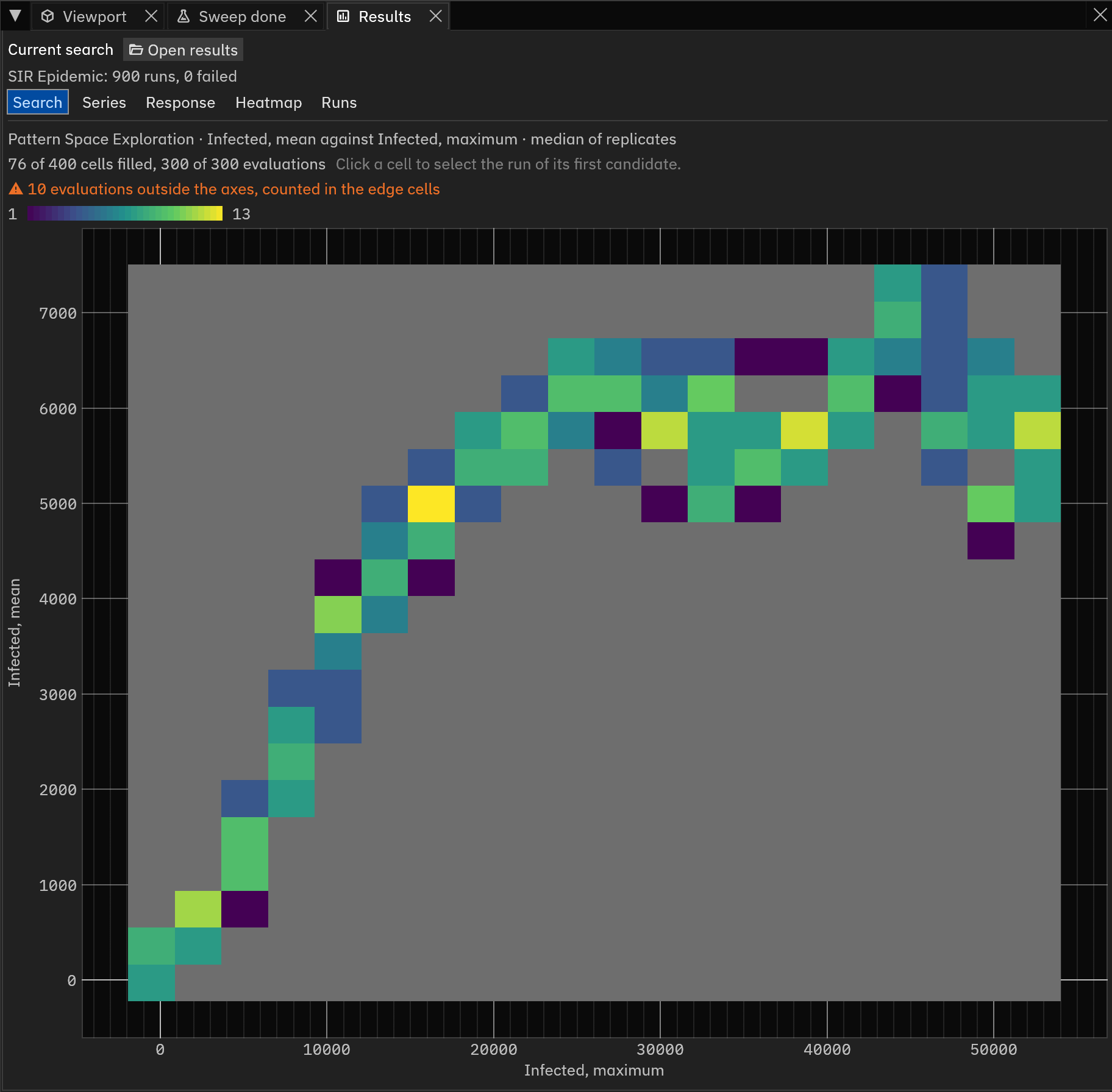
The Search view follows the course of a search. Its first line shows the method and its goal, as in Genetic algorithm · maximize Infected, tick of maximum · median of replicates. For a Pattern Space Exploration, the line shows its y axis against its x axis.
- Random search and hill climbing
- Plot the best value so far against the evaluations, with a step at each batch that changed it.
- Genetic algorithm
- Plots the Best, Median and Worst fitness of each generation.
The best can fall when a re-evaluation shows that a leader was lucky, as noise describes.
Before the first generation finishes, the view reads First generation is still running., or Search ended before its first generation finished. once the search has ended.
Results opened without
generations.csvread Generations unavailable. These results have no generations.csv.
For these three methods, a line above the plot counts the evaluations and shows the best candidate. Select run selects the candidate's first run, ready to open.
- Pattern Space Exploration
- Draws the grid of its two axes and fills it in as the batches finish, with a line counting the cells filled and the evaluations. With an automatic range, the grid appears once the initial samples finish. A filled cell is coloured by its hits on a log scale, given above the grid, and an empty cell is grey. An evaluation with an output outside the axes lands in an edge cell, and a warning counts those evaluations, as in 12 evaluations outside the axes, counted in the edge cells. Hover over a cell to read its ranges and its hits, and click a filled cell to select the first run of its exemplar. A grid of more than 65,536 cells is not drawn.
The other four views treat each candidate as a configuration, and name it Candidate instead of Config.
Series
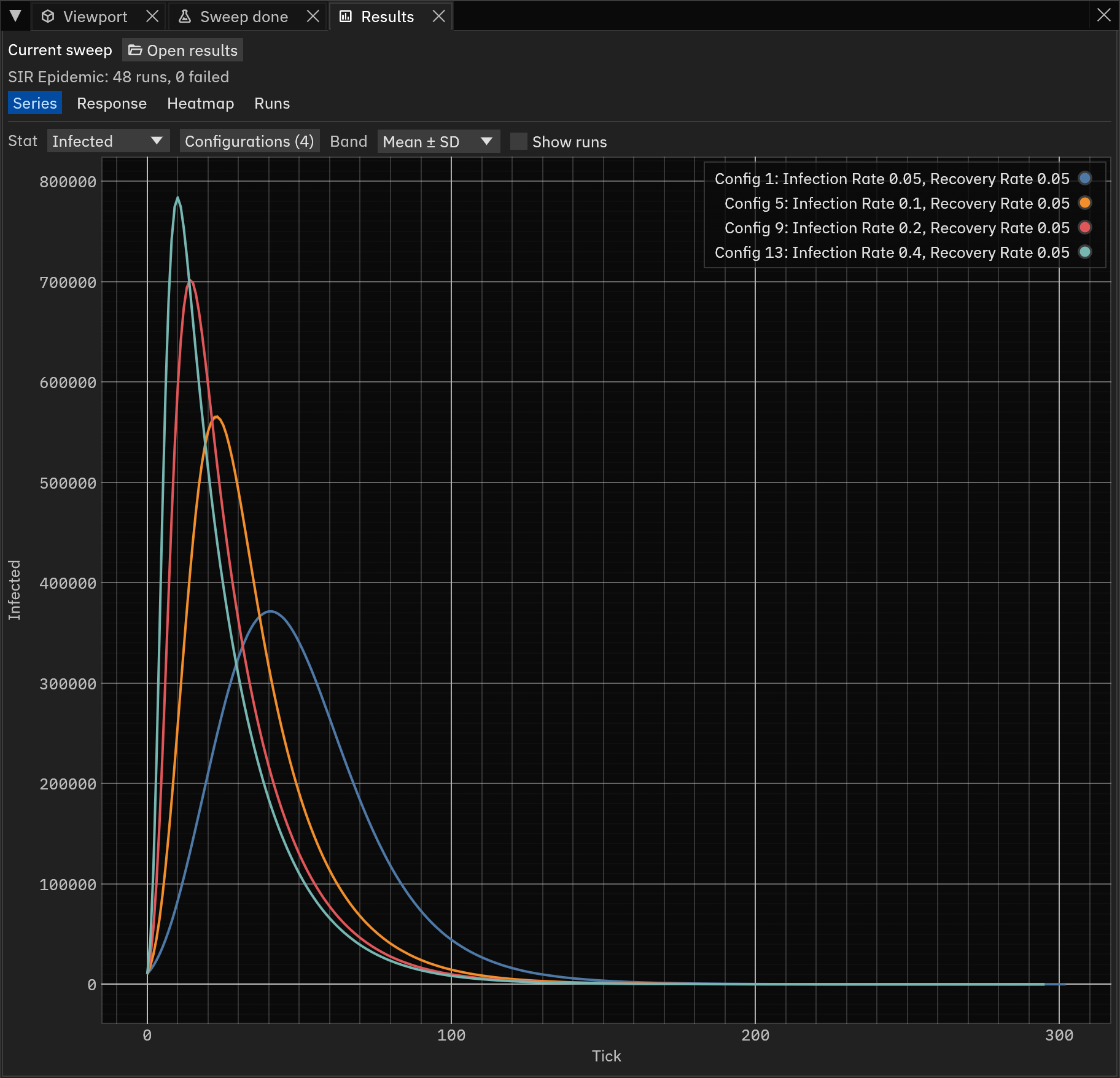
The Series view draws one stat over time. Each configuration gets a line through the centre of its replicates, and a band around the line. Stat picks the stat, and the Configurations menu picks the configurations, with All and None at the top. The first five configurations are drawn at the start, and at most ten are drawn at once. Band sets the line and the spread around it:
| Band | Line | Band covers |
|---|---|---|
| Mean ± SD | Mean | One standard deviation either side |
| Mean ± 95% CI | Mean | The 95% confidence interval of the mean |
| Median, 10–90% | Median | The 10th to the 90th percentile |
Failed runs are left out, and a run that stopped early adds nothing past its last tick. Tick Show runs to draw every replicate as a thin line, and click a line to select its run.
The app holds up to 256 MiB of series, or 64 MiB in a browser, and keeps the runs past that without their series.
The view then reads like Series loaded for 800 of 2000 runs.
For a folder opened in the desktop app, Load series reads the missing series of the drawn configurations from series.csv, within the same budget.
Response
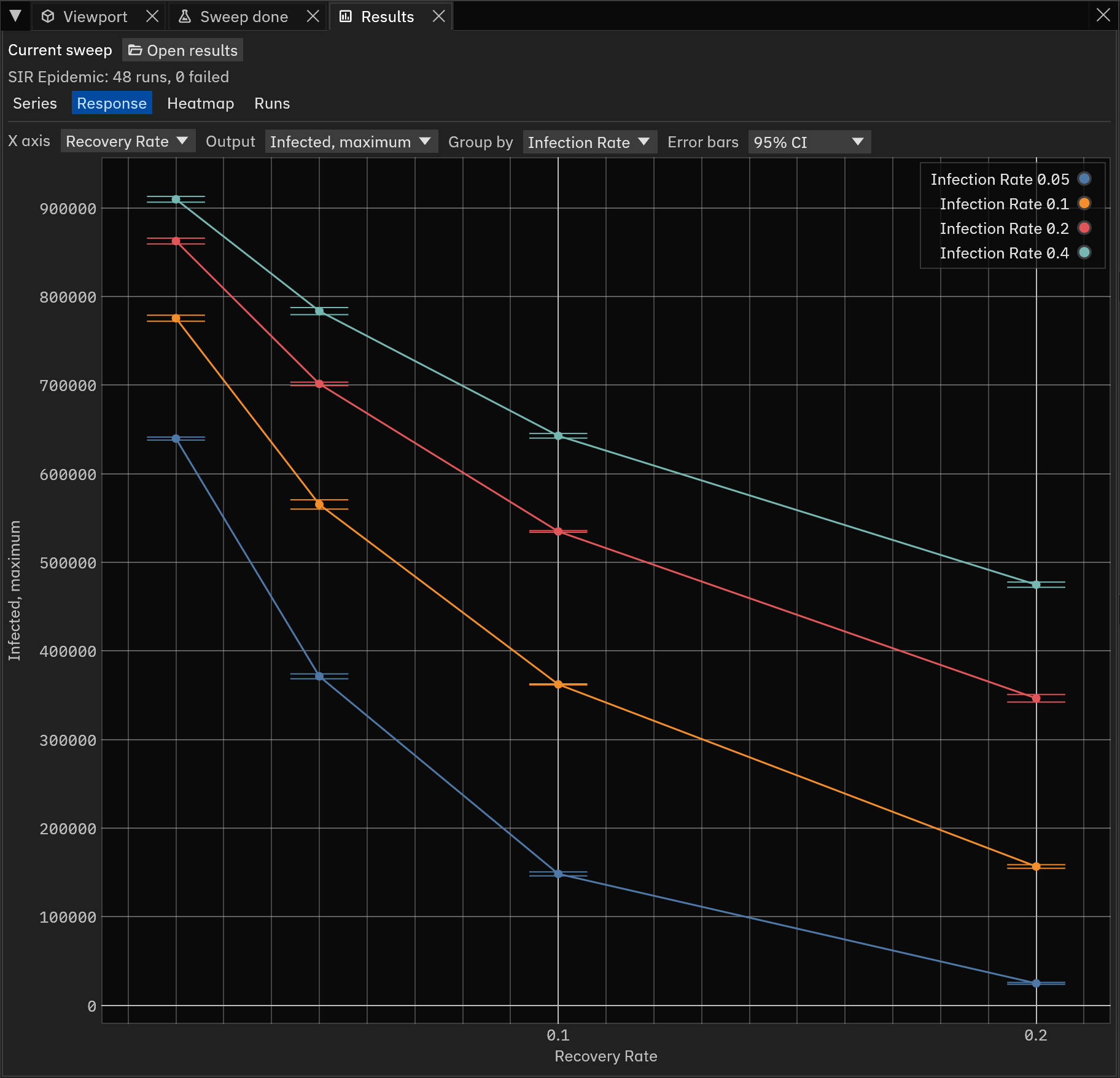
The Response view plots an Output against the levels of the X axis, one point per level. A point is the mean of the output over every run at that level that did not fail, whatever the levels of the other axes. In a sweep of several blocks, such as a One at a time sweep, a point pools only the blocks that vary the X axis. Error bars draws whiskers for the 95% CI of the mean or one SD either side, or None. Group by draws one line for each level of a second axis. Every other axis gets a menu, such as Recovery Rate at, that holds it at one level instead of Any.
Heatmap
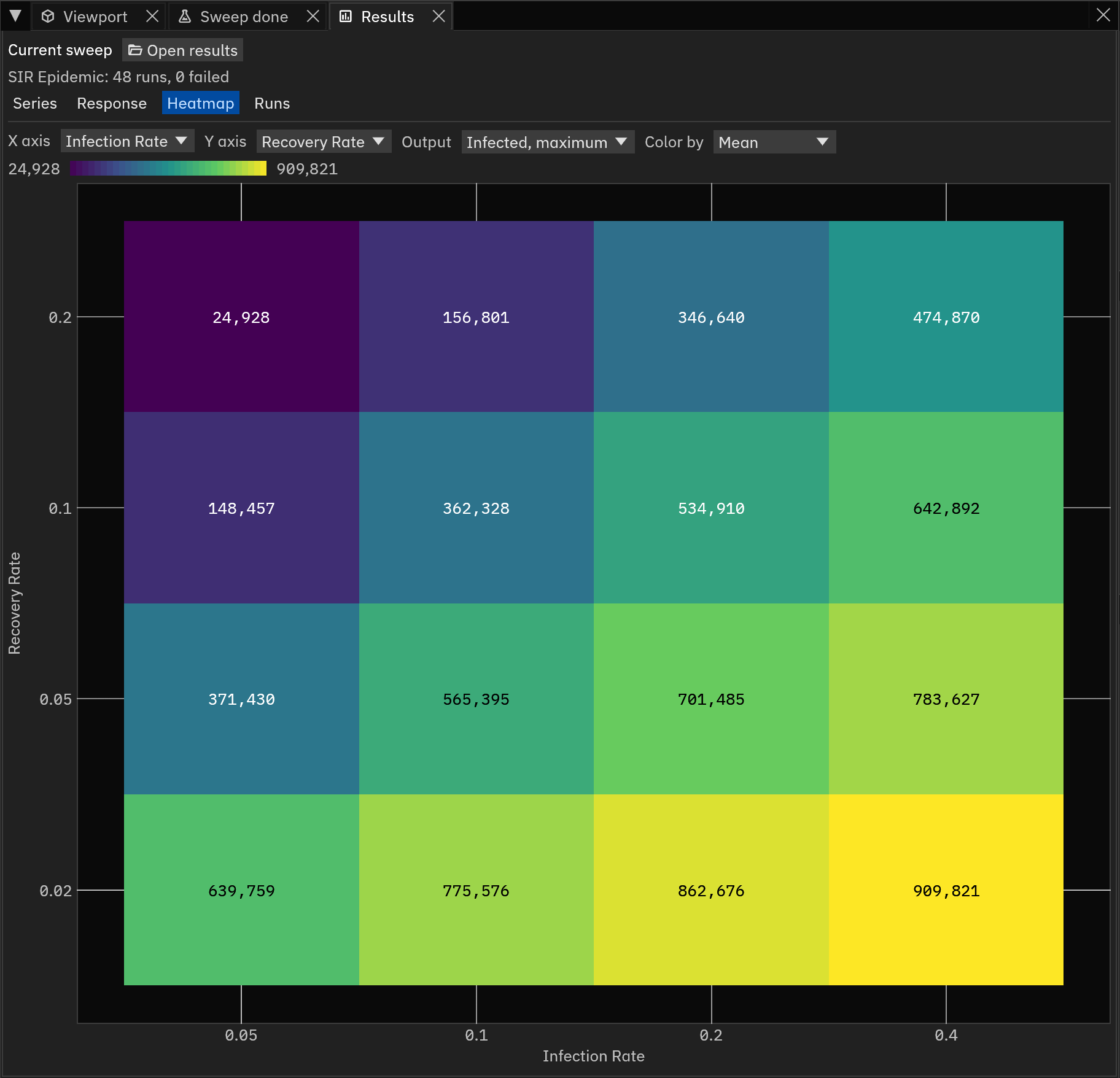
The Heatmap view colours a grid by an Output, with the levels of the X axis along the bottom and those of the Y axis up the side. An axis needs 64 levels or fewer to be a side. A sampled design gives each parameter one level per sample, so the heatmap of a sampled design is sparse, and a design of more than 64 samples has no heatmap. Color by picks the Mean, the Standard deviation, or the Coefficient of variation, the standard deviation divided by the absolute value of the mean. A scale above the grid shows the colours. A grid of 100 cells or fewer also writes each value in its cell. A grey cell has no value, for example while none of its runs has finished. Hover over a cell to see its value and the number of runs it pools. Click a cell to list its runs in the Runs view. As in the Response view, every other axis gets a menu that holds it at one level. A cell pools only the blocks that vary either axis, and a configuration that two blocks share counts once.
Runs
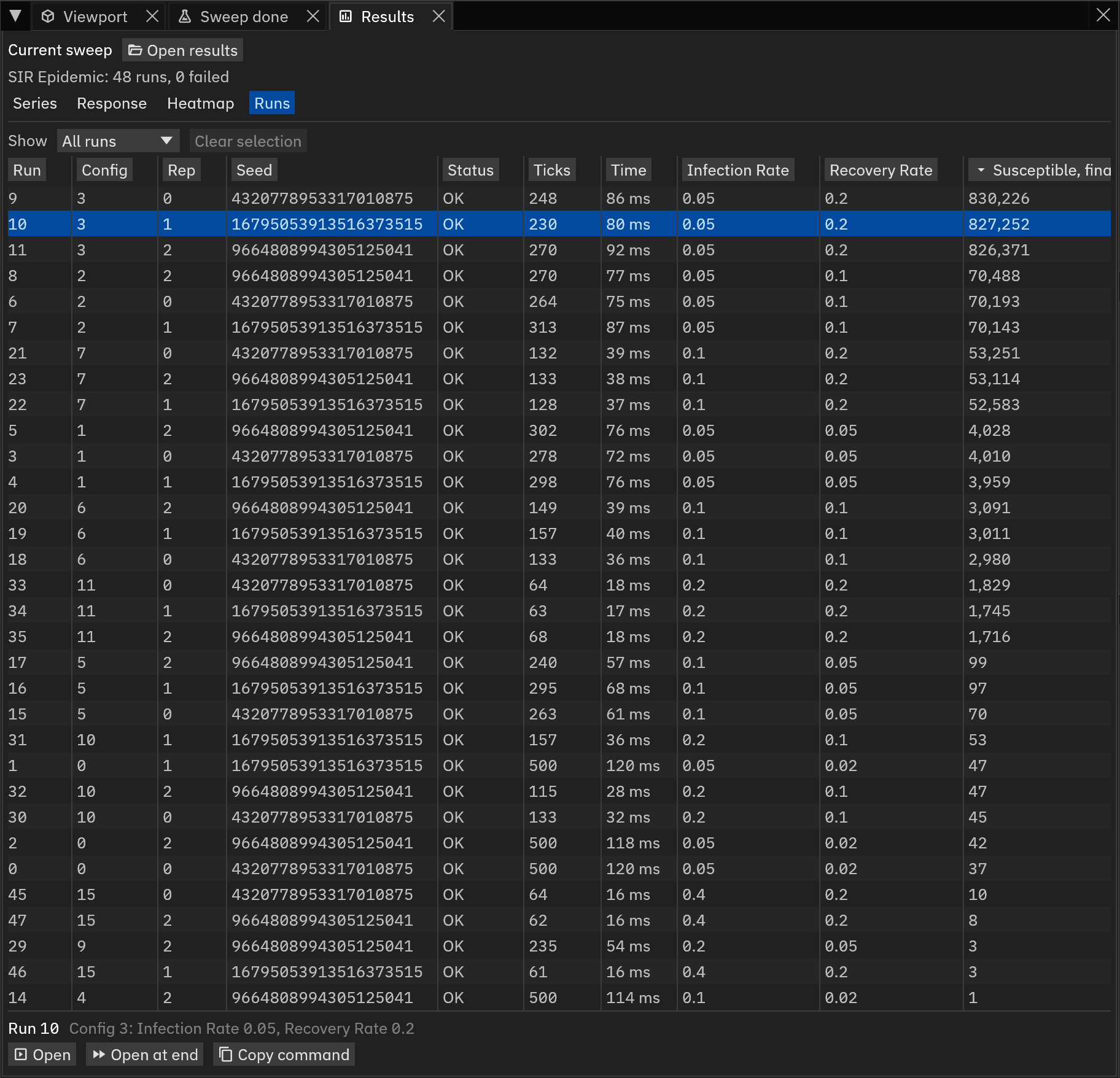
The Runs view lists every run in a table: Run, Config, Rep, Seed, Status, Ticks and Time, then a column for each axis and one for each output. Click a header to sort by it, and click it again to reverse the order. Show lists All runs, the Failed runs, or the runs of the Selected configurations, Selected candidates for a search. The Series view's Configurations menu (Candidates for a search) and a clicked heatmap cell set that same selection. Under Selected configurations, Clear selection empties it, in the Series view too. Hover over a status to read the run's note, such as a panic message, or the tick at which a stop condition ended it. Every status but OK and Not finite counts as failed.
Opening a run
Click a row in the Runs view, or a run's line in the Series view, to select the run. In the Search view, Select run and a click on a filled cell select a run as well. A strip at the bottom of the tab then shows the run and its configuration, with three buttons.
- Open
- Builds the run at tick 0 with its parameters, seed and scheduled actions, and brings the Viewport tab to the front. Press and the run steps as it did in the sweep.
- Open at end
- Builds the run and runs to the last tick it reached.
The Statistics tab then shows the same values as the run's last row in
series.csv. - Copy command
- Copies a
henad-clicommand that replays the run and writes its stats to a CSV file. An app built on Henad copies a command for its own command line instead, and shows no button when it has no command line. The command samples from tick 0, every--stats-everyticks. The run's series samples from the end of its warm-up, and with a warm-up the two files can hold different ticks.
For run 6 of the first sweep in the sweeps guide, the command reads:
henad-cli sir --seed 16795053913516373515 --set infection_rate=0.2 --warmup 0 --steps 500 --export-stats run-6.csv
With the CLI installed, it runs as it is.
From a clone, run it as target/release/henad-cli after a release build, or put cargo run --release -p henad-cli -- instead of henad-cli.
The Playback tab labels the opened run, as in Sweep run 6: config 1, replicate 1, or Search run 6: candidate 1, replicate 2 for a run of a search. A live parameter edit or an action press adds (modified) to the name. GPU Boids is the one example model whose runs do not replay, for the reason under Seed. For a model that declares it does not replay exactly, a note beside Open says so, and the same note shows under the run's name in the Playback tab.
The three buttons are disabled when the run's model is unavailable on this device, such as a GPU model on a machine without a suitable GPU.
They are also disabled when the model rejects the sweep's spec, for example after a parameter was removed, and the reason shows below them.
A sweep of more than 1,048,576 configurations disables them as well.
The app opens such a sweep from runs.csv alone, without planning it.
A warning shows when the model's parameters, stats or actions changed after the sweep ran, or when the build of Henad or of the model differs from any build a session of the sweep recorded, and the replay might then differ.
A model crate whose build.rs does not call henad_build::stamp_commit has an unidentified build that cannot be compared.
A second warning then reads Model build is unidentified, below any warning of a change.
Opening results
Open results reads the results of a sweep from its folder, written by henad-cli --out or by a sweep with its results In a folder.
In a browser, choose manifest.json and runs.csv in the folder, and series.csv for the series.
For the Search view of a search, choose evaluations.csv, batches.csv and, from a genetic algorithm, generations.csv as well.
The files are identified by their contents, so a repeated download that a browser renamed, such as runs (1).csv, still opens.
The tab reads Reading results while it reads the picked files.
The desktop app can also open a folder at start:
The results replace the results currently shown. When those are unsaved results in memory, a Replace results? dialog asks first, and Open anyway drops them.
A folder that a stopped sweep left behind opens with the runs that the sweep wrote, even when it wrote no runs.
In the desktop app, Resume sweep runs the runs that are missing from the folder, as henad-cli --resume does.
It keeps the memory budgets that the folder's manifest records, and a line under the button shows them until the resume starts.
Concurrent runs is automatic, as on a new sweep.
henad-cli --resume takes the concurrency and the memory budgets from its flags and its spec's [execution] table instead.
For a search the button reads Resume search, and it replays the search up to where it stopped before running the rest.
The progress shows in the Sweep tab, and the folder is read again once the sweep ends.
Performance tab
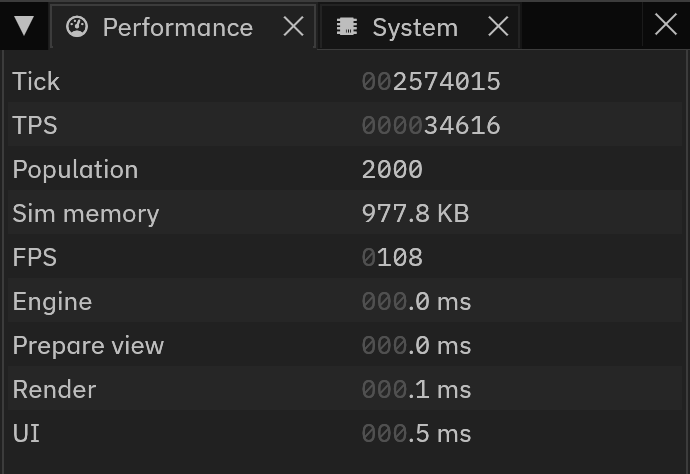
- Tick
- Ticks completed since the model was built.
- TPS
- Ticks per second the sim thread is actually achieving.
- Population
- Number of agents for an agent model, number of cells for a grid model. For a network model, the number of nodes, not counting retired nodes.
- Sim memory
- Memory used by the simulation.
- FPS
- Frames per second of the UI. Usually unrelated to TPS.
- Engine
- Time for one tick inside the engine.
- Prepare view
- Time the last snapshot spent turning the model's state into something drawable, including a network model's layout. Reads zero for a GPU model.
- Render
- Time spent drawing the simulation this frame.
- UI
- Time spent drawing the UI this frame.
FPS is unrelated to model performance
Note that the FPS and the TPS are unrelated and each can be configured in different ways, as explained in the Pacing tab. The TPS is the true measure of how fast the simulation is running.
System tab
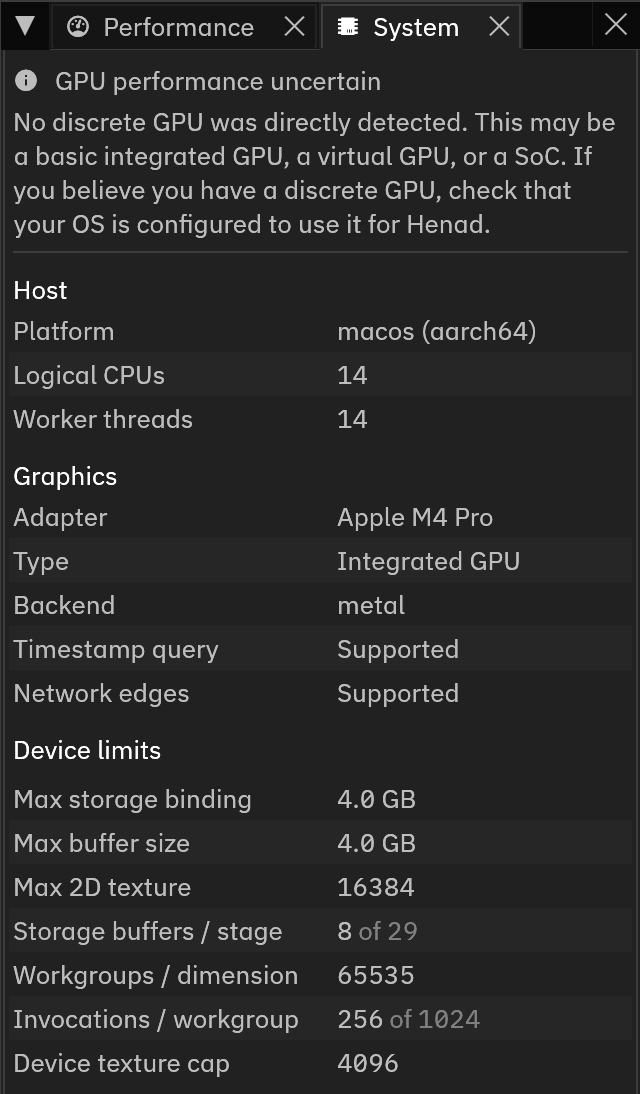
Information in the System tab is generally technical and used for debugging purposes. It can also be used to check if the correct GPU adapter is being used, and if the device has enough resources to run a model.
The Network edges row shows whether the GPU can draw the edges of a network model. When it reads Unavailable, network models still run, but their edges are not drawn.
A banner at the top appears when there are potential compatibility issues with the GPU, and can be one of the following:
| Banner | Issue |
|---|---|
| GPU performance uncertain | No discrete GPU was directly detected. This may or may not affect performance. |
| No GPU detected | Rendering is going through a software rasteriser, and GPU models will be very slow. |
Model build and simulation errors
Henad checks a model's buffer sizes, texture dimensions and per-pass binding counts against the device before models are built. If a model cannot be built, Build is disabled, and the limits that were exceeded are shown in the Parameters tab's banner.
At runtime, there are two possible errors that can occur:
- Model build failed
- The GPU rejected the model while it was being constructed, or a kernel panicked during setup.
- Simulation aborted
- Something went wrong on a tick, and the simulation was stopped.
When such an error occurs, a modal dialog appears with the error message.
Browser-specific notes
Although Henad is designed so that the web app runs identically to the native app, there are some differences due to the limitations of the web platform:
- GPU time/step reads
N/Adue to backend limitations. - Layout budget is capped at 6 ms, the time the simulation gets in each frame.
- Device limits can be lower than in the native app as browsers may not expose the full capabilities of the GPU.
- Append
?threads=Nto the URL to cap the worker pool. - The Sweep tab sweeps and searches CPU models only, and a GPU model shows GPU sweeps are unavailable in a browser.
Save spec still saves its spec for
henad-cli --spec. - A sweep or search steps one run at a time, a little in each frame, and Concurrent runs stays at 1.
- The results of a sweep or search stay in memory, and In a folder is disabled. Closing the page loses them unless you press Save results.
- Every save is a download that starts at once, with no dialog in the app. The browser puts the file in its downloads folder or asks where to save it, as its settings say, and it can ask before it lets a page download several files. Save results therefore stays after its downloads start.
- A panic in a run of a sweep or search ends the page. The desktop app records such a run as failed and carries on.
- A browser cannot open a folder, and Open results reads the files picked from a folder. Resume sweep, Resume search and Load series need the desktop app.
- Boids, Ants and Virus on a Network call maths functions such as
sinandcos. The web build computes them with its own maths library, and the desktop app with the system maths library, and the two libraries can round the last bit differently. A run of one of these models saved in a browser and opened in the desktop app can diverge from its row, with no warning.